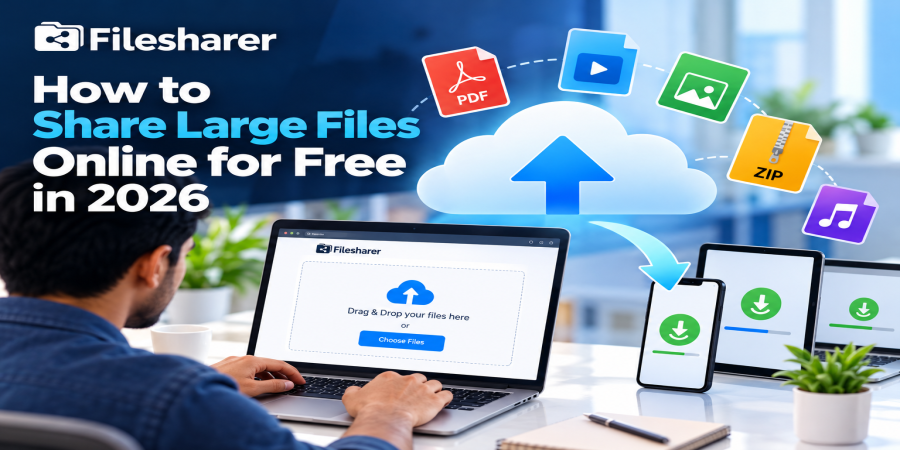
How to Share Large Files Online for Free in 2026: A Practical Beginner's Guide
Oct 11, 2026 08:21 AM
Michael Carter
A large file can interrupt an otherwise simple task. You finish editing a promotional video, prepare a high-resolution product catalog, export a presentation, or collect hundreds of event photographs, only to discover that the file is too big to attach to an email. Trying a messaging app might not solve the problem, because some apps compress media, impose upload limits, or make it awkward for a customer to download the original version. Fortunately, you can share large files online without purchasing a server, carrying a USB drive, or asking the recipient to install complicated software.
The basic method is straightforward: upload a file to a hosting service, let the service store a copy temporarily, and send the generated link to the intended recipient. The other person can open that link and download the file when it suits them, subject to any access settings and expiration limits. This guide explains how that process works in 2026, how to choose a genuinely useful free plan, and how to make your first transfer with fewer mistakes. Imagine a small graphic design business sending a collection of approved logo files to a customer. Instead of dividing the package among several emails, the designer puts the deliverables into one clearly named ZIP archive, uploads it once, tests the link, and sends a short message explaining what it contains.
A teacher can use a similar process for learning materials, while a photographer may share original images with a client who needs full quality. Even a family member transferring home videos between devices can benefit from an upload-and-link workflow. There is, however, an important difference between sending files and storing them forever. A file-sharing website usually makes delivery convenient, but its free tier may restrict the size of individual uploads, total stored data, the number of simultaneous transfers, or the length of time a file remains available. A service may also show advertisements or apply fair-use conditions. That is not automatically a problem; it simply means you should check the rules before promising that a link will work next month. Also remember that a downloadable link is not the same thing as a private, permission-controlled workspace. If you share a public link, someone who receives or forwards it may be able to open the file.
Think about the contents before uploading, especially when personal information, confidential business records, or customer data are involved. A useful way to begin is to measure the actual item you want to send. Your computer shows its size in megabytes or gigabytes; compare that figure with the hosting plan before you attempt the upload. If several files belong together, decide whether the recipient needs each one separately or would appreciate a single organized package. Simple preparation saves effort later, especially when the other person has limited time or mobile internet access. In the sections ahead, you will learn how to prepare files, assess storage and retention limits, upload through a browser, verify a download, choose reasonable privacy settings, and clean up old transfers.
You will also find a practical checklist and answers to the questions beginners ask most often. The aim is not to chase the biggest advertised storage number. It is to build a simple, repeatable process that lets the right person receive the right file, in its original usable form, at the right time, without spending money when a suitable free option already meets the need.
Why Free Large-File Sharing Matters for Everyday Work
The ability to share large files online matters because digital work rarely stays on one device. A shop owner needs to deliver a product catalog to a distributor, a freelancer needs to hand over a finished video, and a remote team may need the latest version of a presentation before a meeting. Ordinary email is excellent for messages and smaller attachments, but an attachment-size ceiling can stop a larger transfer before it begins. Uploading the file to a hosting platform changes the workflow. Instead of pushing the entire attachment through every email, you send a lightweight link that points to a hosted copy.
That can help people communicate in the apps they already use while keeping the actual file in one place during its availability period. Recipients may download at different times, which is useful when colleagues or clients work in different time zones. Link-based sharing also makes it easier to include basic instructions, such as the project name, file size, version number, and deadline for downloading. Free file hosting is related to cloud storage, but the two are not identical. Cloud storage may emphasize synchronization, collaborative editing, folder permissions, or backups.
A transfer-oriented file host primarily helps you upload something and give someone access to a downloadable copy. Some services combine these features, so look at the actual plan instead of relying on its category name. For readers who want the background first, the explanation of free file hosting and how it works covers the concept in more detail. The practical advantages extend beyond convenience. Sharing an original archive can preserve file names, folder structure, and image or video quality where the recipient needs editable source material.
It reduces the confusion of ten messages labeled “part one” through “part ten,” although compression will not magically shrink every type of file. It can support a more professional handoff: one agreed package, one description, one recipient, and one tested download path. At the same time, free does not mean unlimited. A free service supports its infrastructure through a business model that may include advertisements, restricted quotas, or optional paid upgrades. Its upload speed can be affected by your connection, traffic, server performance, and file size; therefore, claims of instant delivery deserve caution. More importantly, a temporary hosted copy should not replace your original file or independent backup. If an upload expires or an account becomes unavailable, the saved master copy should still be accessible elsewhere.
Businesses must also consider approval and privacy. A public marketing brochure is very different from payroll documents or a customer's identity record. Use a company-approved system when handling sensitive or regulated material, and do not assume that a shareable link alone proves that only one person can access it. A reliable routine begins with four questions: what must be sent, who is authorized to receive it, how long does access need to last, and what happens if the link travels farther than expected? Clear answers make it easier to select a free service and decide which files should be shared another way.
It also helps to agree on a naming convention and an expected confirmation message. Those small shared expectations can reduce uncertainty without requiring a complicated project management system or paid software. Once this habit becomes normal, a file transfer stops being an improvised technical problem and becomes a predictable step in everyday communication.
Choose a Free Platform by Its Real Limits, Not Its Slogans
Before uploading a large file, look beyond the word “free” and compare the limits that actually affect your task. Start with maximum size per file: a platform that accepts individual files up to a certain size may still refuse a larger archive even when you have unused storage. Next, examine total storage capacity, because several smaller uploads can fill a free account. Retention is equally important. A hosted link that expires before the client downloads it is not a successful delivery, however generous the original upload allowance seemed.
Also compare how many files can upload simultaneously, whether the recipient needs an account, whether download links can be password-protected, and whether the service includes advertisements or basic speed restrictions. As of October 2026, Filesharer's published Starter plan lists 21 GB of storage, a 6 GB maximum per file, availability for 50 days, and up to five simultaneous file uploads. The plan is free and its public feature list also includes drag-and-drop uploads, public sharing, private file links, and password-protected files.
These are published plan details rather than a promise that every transfer will behave identically for every user; restrictions and service conditions can change. Check the upload area and current pricing information before starting a time-sensitive project. The homepage additionally states that basic uploads do not require an account, while registration offers better file management. That distinction can be helpful when you need to send something once but may matter less for a team that shares files every day. For a practical comparison of broader options, consult the guide to free file sharing websites in 2026, then match your choice to your own requirements instead of choosing a winner based on one headline number.
Consider a 4 GB training video. It fits within a published 6 GB per-file ceiling, but you still need enough available space and adequate upload time. A 9 GB archive does not fit that ceiling even if the service advertises 21 GB of total storage. In that situation, splitting the material into manageable archives might be practical only if your recipient can easily reconstruct them, and if each part complies with the service's rules. Otherwise, select a plan or provider with an appropriate individual upload limit. Similarly, a downloadable media package intended for a one-day handoff has different retention needs from a project archive that clients may request months later. A free plan can be excellent for the first job and unsuitable for the second. Think about the recipient's experience too. Does the link open on a phone? Will the person understand the download page? Are the files named clearly? Can they obtain the original quality? Test these details rather than assume.
Finally, read the acceptable-use and privacy rules. Legitimate file hosting does not grant permission to redistribute copyrighted works, expose private information, or upload harmful content. If a platform's marketing mentions “unlimited” storage elsewhere, verify which specific paid or free tier that description applies to. Keep an eye on download restrictions as well as upload restrictions. Some services apply different rules for guests, signed-in users, and paid subscribers, so checking only the uploader’s experience may overlook what the recipient will encounter.
A short test download elsewhere is often a practical comparison. It reveals whether the link and instructions are understandable to someone who was not involved in the upload. The best free choice is one that has transparent boundaries and lets you complete the transfer responsibly without surprise delays, missing files, or unrealistic expectations.
Step-by-Step Guide: Upload, Check, and Send Your File
Here is a beginner-friendly workflow you can repeat whenever you need to share large files online.
Step 1 — Identify the file and recipient. Decide what the other person really needs. If you are delivering a design project, include approved final exports and any source files requested in the agreement, but leave out unrelated personal documents or private notes.
Step 2 — Prepare a clear filename. Replace confusing labels like “final-new-2.zip” with a name that identifies the project, content, and version, such as “Spring-Catalog-Approved-v2.zip.” Open the file locally and confirm that it is complete.
Step 3 — Organize multiple files if necessary. Put related assets into a folder and create a ZIP archive if that improves delivery. Some files, especially already compressed videos, may not become much smaller in a ZIP, so use archiving for organization rather than expecting a dramatic reduction.
Step 4 — Keep the original. Save your master copy on a reliable device or approved backup service. A transfer link should never become the only remaining copy of valuable work.
Step 5 — Check the service's current limits. Visit Filesharer's upload and sharing page and review the maximum file size, storage allowance, and retention shown there. As with any free hosting platform, confirm that the selected file fits before beginning.
Step 6 — Select the upload. On the homepage, drag the prepared file into the upload area or use the browse control to select it from your device. If you have several files, remain within the displayed simultaneous-upload allowance.
Step 7 — Review any available settings. The upload interface includes an automatic deletion selector, while the plan information lists options such as private links and password protection. Apply suitable settings when offered in your current workflow, and do not assume that a feature advertised on a plan is already enabled for a particular file.
Step 8 — Start and finish the transfer. Press Upload and allow the browser to complete the process. Avoid closing the tab or changing networks during a large upload. If progress stalls, check your connection before repeatedly restarting.
Step 9 — Save the generated link. After the service confirms success, copy the shareable link; if a deletion or management link is provided, keep that information in a safe place.
Step 10 — Test the recipient's experience. Open the download link in a separate browser session or on another device. Confirm that it leads to the intended file, any chosen access protection works, and a download can begin.
Step 11 — Send a useful message. Tell the recipient what the file contains, its approximate size, whether a password is required, and when they should download it. Share any password through a separate trusted channel rather than placing it beside the link in a public message.
Step 12 — Follow up and clean up. Ask the recipient to confirm successful access when the transfer is important. Record the link and expiration date if you need them later, and remove obsolete uploads when possible. This workflow does not require specialist software, but it does require attention to small details. If an upload fails, retry only after confirming the file remains within current limits.
If the recipient cannot open the link, review its access settings and expiration instead of immediately sending multiple duplicate copies. Most importantly, pause before uploading any sensitive material: convenience is not a substitute for appropriate authorization. A test with an ordinary document is a good way to learn the interface before an important business deadline.
Protect Privacy, File Quality, and Your Recipient's Trust
File sharing should make information available to the intended person without making it unnecessarily available to everyone else. Start by classifying each file. Public brochures, published photographs, promotional videos, and openly distributable documents usually present fewer privacy concerns than contracts, private customer details, financial statements, medical information, or account credentials. If a file contains sensitive information, use the transfer method your organization permits, confirm authorization, and apply stronger controls where required.
A hosting service may advertise encrypted connections or encrypted storage, but those features alone do not establish end-to-end encryption or guarantee that no party can access your data. Do not make security assumptions based on a logo, padlock icon, or marketing phrase. For ordinary sharing, verify that the website uses a secure connection, protect your own account with a strong unique password, and enable multifactor authentication if the platform offers it. Treat the recipient list as carefully as the upload itself. A private download link is still something that can be copied, forwarded, or pasted into the wrong group, and a password does little good if it is publicly displayed next to the link. When a provider offers optional password protection, select a strong password for appropriate files and send it through another trusted channel. If strict identity verification or an audit trail is necessary, use an approved business-sharing system rather than relying on a basic public download page. Responsible storage matters as much as safe transmission. Keep important originals separately, maintain backups, and remove temporary hosted copies after their purpose is fulfilled.
The U.S. Cybersecurity and Infrastructure Security Agency offers accessible advice about protecting and backing up data stored on devices, including why encryption and independent backups reduce risk. For business users, that advice supports a simple principle: online delivery and long-term preservation are different tasks. File quality requires attention too. Messaging platforms sometimes alter or compress media, while sharing an original file or archive can help recipients receive the version you prepared. Still, inspect the exported file before uploading. A low-resolution PDF remains low resolution after a perfect transfer, and a corrupted ZIP does not become healthy because the upload completed successfully. For complex packages, include a short text file with version information and instructions.
For especially important technical exchanges, a checksum can help both parties verify that downloaded contents match the original, provided the checksum itself is communicated reliably. Consider the recipient's device and connection as well. A customer using mobile data may prefer a smaller preview before choosing to download several gigabytes of originals. Give them a realistic file-size warning and provide alternative formats when appropriate.
Do not share content you lack the legal right to distribute, including copyrighted software or media, and never upload malware or files that invade another person's privacy. Finally, remember that deletion from a host does not erase copies already downloaded by recipients. Choose your audience before you share, limit unnecessary distribution, and plan for the possibility that a link could reach someone unintended. If a shared item changes, do not silently replace it and expect everyone to notice. Communicate the new version, explain what was updated, and ask the recipient to discard the outdated copy when appropriate. Where a team is involved, agree on who owns the current master file and who can authorize distribution. These basic habits strengthen privacy and accuracy without making simple exchanges unnecessarily difficult. Thoughtful handling protects your reputation just as much as it protects the information moving between devices.
Common Mistakes to Avoid and a Pre-Upload Checklist
Even when the upload button is simple, a successful transfer can fail because of decisions made before or after it.
Mistake 1: confusing total storage with per-file limits. Having enough overall space does not mean one oversized archive will be accepted. Check both numbers.
Mistake 2: starting at the last minute. A home connection may upload more slowly than it downloads, so large transfers can take longer than expected. Begin early and leave time for a verification download.
Mistake 3: forgetting expiration. The recipient might open the message after a temporary link has expired. State a practical download deadline and keep a backup ready when you can legally and safely resend the material.
Mistake 4: skipping the download test. A copied link may point to an earlier version, require unexpected credentials, or lead to a missing file. Test it before telling a client that delivery is complete.
Mistake 5: using unclear names. “Document-final-final.pdf” invites mix-ups. A consistent project-date-version format is easier for everyone to understand.
Mistake 6: treating a public link as confidential. Anyone with an unrestricted link may be able to view or retrieve the file, so restrict distribution and choose an approved system for sensitive information.
Mistake 7: assuming free hosting is a permanent backup. Retention limits, maintenance, account restrictions, or policy enforcement can make a hosted copy unavailable. Keep your original and follow a separate backup routine.
Mistake 8: uploading material without permission. Ownership, client consent, copyright, and organizational rules still apply even when a website accepts the upload.
Mistake 9: sending no explanation. The recipient should know what they are downloading and why.
Mistake 10: leaving obsolete files accessible. If a transfer is complete and the material is no longer needed online, use the available deletion or management tools. A checklist can prevent all of these errors without turning a quick job into a complicated project.
Frequently Asked Questions and Final Call to Action
Q1. Can I share large files online for free without creating an account?
Some platforms allow guest uploads. Filesharer's published FAQ says basic uploads do not require registration, although an account provides additional management options. Check the current interface before relying on guest access for repeated work.
Q2. What is the maximum free upload size on Filesharer?
Its Starter plan currently displays a 6 GB limit per individual file, along with 21 GB of storage. Limits may change, so use the figures shown at the time of uploading rather than assuming an older article is always current.
Q3. How long does a free hosted file remain available?
Filesharer's Starter listing states 50 days of file availability, while its broader guidance also discusses retention and possible automatic deletion. Review the live setting before promising that a customer can retrieve a file on a specific future date.
Q4. Can I send a video without losing quality?
Uploading the original finished video file can avoid the quality reductions that sometimes occur when media is sent through an app that compresses it. However, successful hosting cannot reverse quality lost during recording, editing, or export.
Q5. Is ZIP required for large-file transfers?
No. A ZIP archive is useful for grouping folders and multiple files, but an individual PDF, video, or image can usually be uploaded directly if its format and size meet the platform's rules.
Q6. Why does my upload take so long?
Your upload bandwidth, network stability, file size, device, and hosting conditions all affect completion time. A fast download subscription does not necessarily mean equally fast upstream speed.
Q7. Can a recipient download files on a phone?
Often yes, if their browser and device support the download and they have sufficient storage and data allowance. Test an important handoff on a mobile device when the recipient will rely on one.
Q8. Are shareable links automatically private?
No. Anyone holding an unrestricted public link may be able to access it. Use suitable protections where available and an approved controlled-transfer system for truly sensitive data.
Q9. Should I delete a file after it has been downloaded?
Delete temporary hosted copies when they no longer have a legitimate purpose, while remembering that removing a link does not erase copies already saved elsewhere.
Q10. Is free file hosting suitable for a small business?
It can be a useful option for public marketing assets, ordinary project deliverables, and occasional client handoffs when the free limits meet the job. More sensitive work may require different controls, retention policies, or audit features.
Q11. What if the file exceeds the free size limit?
Consider creating smaller logically organized packages if doing so fits the service rules and remains convenient for the recipient, or use a service tier designed for that file size. Avoid workarounds that violate a provider's terms.
Q12. Is a file-hosting link a backup?
No; temporary hosting and durable backup serve different purposes.
Ready to share your next file?
Start with an ordinary, non-sensitive document or media package, check the live free-plan limits, upload carefully, and test the resulting download link. Send it with clear instructions and a realistic expiration reminder. Repeat the same steps—prepare, upload, protect, test, share, and clean up—to make delivery easier. Free sharing is valuable not because it removes every limit, but because it makes the common task of getting a large file from one person to another simpler, more organized, and easier to manage.
Login or create account to leave comments
Popular articles
Top Free Cloud Storage Platform for Fast and Secure File Sha...
Mar 13, 2026 07:18 PM
Why Secure Cloud Storage Is Essential for Modern File Sharin...
May 19, 2026 01:40 PM
What Is File Sharing and How to Share Files Online Securely
Mar 12, 2026 07:43 PM
Best Free Cloud Storage for Secure File Sharing in 2026
Mar 13, 2026 07:08 PM
Best Cloud File Transfer Platforms for Easy Online Sharing
May 19, 2026 01:48 PM
Comments (0)