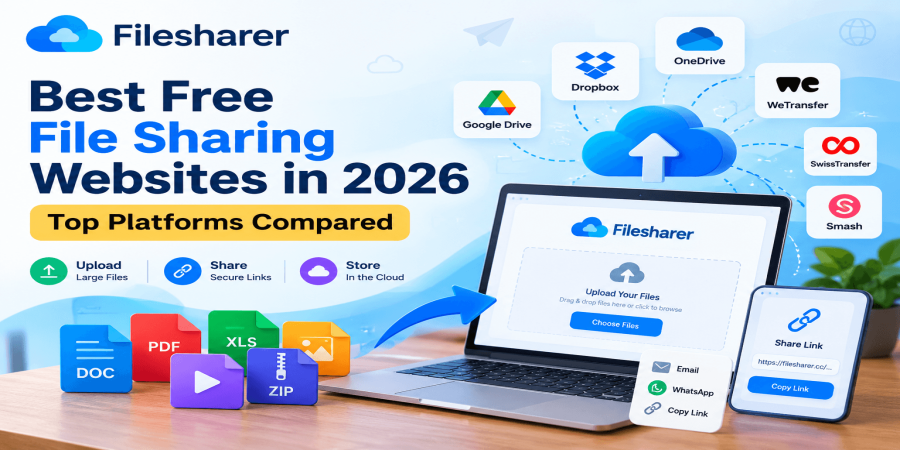
Best Free File Sharing Websites in 2026: Top Platforms Compared
Oct 05, 2026 04:50 AM
Michael Carter
Choosing a file-sharing service in 2026 looks simple until you actually need to send something important. A photo or short document may fit inside an email, but business proposals, design folders, video files, software packages, compressed archives, client backups, and team resources can quickly become too large for ordinary attachments. That is why the best free file sharing websites are useful for freelancers, students, creators, small companies, remote teams, and everyday users. They let you upload a file, create a shareable link, and give another person access without copying the same data through multiple messaging apps. The important point is that “free file sharing” now covers several different types of services. Some platforms are designed for temporary transfers, where a file stays online for a limited period and then expires.
Others behave more like cloud drives, keeping files inside an account so you can organize, sync, edit, and share them over time. A third group focuses on hosted download links, combining storage with direct sharing. Understanding that difference matters because a service that is perfect for a one-time 20 GB video transfer may be a poor choice for storing invoices for a year, while a cloud drive with generous long-term storage may be inconvenient for a recipient who only wants one quick download. In this guide, we compare Filesharer, Google Drive, Microsoft OneDrive, Dropbox, WeTransfer, SwissTransfer, and Smash using practical factors such as free capacity, per-transfer limits, retention, account requirements, recipient experience, security controls, and ease of use. For a quick look at the service itself, visit the Filesharer file-sharing platform.
At the time of writing, Filesharer’s free Starter plan lists 21 GB of storage, a 6 GB maximum file size, files available for 50 days, and up to five simultaneous uploads, while its sharing features include public links, password protection, and private file links. Those limits make it especially relevant to users who need more than a tiny attachment but do not necessarily want a full collaboration suite. Still, no platform should be selected only because one number looks bigger. Your real decision should consider how long the file must remain available, whether the recipient needs an account, whether the file is sensitive, how often you send large files, and whether you need permanent organization or only delivery. The goal of this article is therefore not to crown one universal winner. Instead, it will help you identify which of the best free file sharing websites fits a specific job, show how to share files safely, point out common mistakes, and give you a simple checklist you can reuse whenever you need to send or store something online.
A useful comparison also separates convenience from ownership. When you upload to a third-party service, you are depending on that service’s availability and rules, so the original file should remain under your control. For small businesses, this is particularly important when sharing quotations, product catalogs, campaign assets, training videos, or client deliverables. A missed download deadline can delay work, and a poorly configured public link can expose material to the wrong audience. For personal users, the same principle applies to family photos, school projects, travel videos, or device backups. Free services are valuable because they lower cost and remove technical complexity, but they work best when you understand exactly what the free tier includes. This comparison therefore focuses on practical limits that affect real users, not marketing language alone.
What to Look for Before Choosing a Free File Sharing Website
Before comparing platforms, decide what “best” means for your situation. The first factor is file size. If you mostly send PDFs, spreadsheets, or a few images, even a small free plan can be enough; if you work with 4K video, RAW photos, CAD files, archives, or website backups, the per-file or per-transfer limit becomes much more important. Second, check whether the service provides storage or only transfer capacity. Google accounts currently include up to 15 GB of free cloud storage shared across Google Drive, Gmail, and Google Photos, Microsoft’s free plan provides 5 GB of OneDrive cloud storage, and Dropbox Basic starts with 2 GB. You can also review the official Google Drive storage guidance when checking Google’s current storage rules.
These services are useful when you want files to remain in an organized account and be accessible from multiple devices. Temporary-transfer services work differently. WeTransfer’s free plan currently allows up to 10 transfers or 3 GB total within a rolling 30-day window, with free transfers available for up to three days. SwissTransfer focuses on much larger temporary deliveries and currently allows up to 50 GB per transfer without requiring an account for the sender or recipient; free availability can be set within its supported retention window. Smash takes another approach: its free version does not impose a file-size limit, but transfers larger than 2 GB are not prioritized and can enter a waiting queue. Third, review retention. A high upload limit is not helpful if the link expires before your client downloads the file.
Fourth, consider access control. For private documents, look for password protection, private links, expiration controls, or restricted recipients rather than treating an unlisted link as automatically confidential. Fifth, consider the recipient experience. A client may prefer a simple browser download instead of being forced to create a new account or install an app. Sixth, think about speed and reliability. Upload time is affected by your own connection, the service’s infrastructure, server location, congestion, and sometimes the plan’s priority rules, so “fastest” claims should be treated carefully unless tested on your own network. Seventh, think about workflow. Cloud drives are stronger when you need folders, synchronization, document collaboration, and repeated access, while transfer services are usually simpler when the task is just “send this file once.” Free plans can change, and upload limits, retention periods, download rules, and feature availability may be revised.
A practical habit is to keep your own original copy, verify the link after uploading, send passwords through a separate channel when appropriate, and avoid assuming that any free service is a complete backup solution. Using these criteria will make the rest of the comparison much easier and will help you choose based on the job instead of brand recognition alone. You should also ask whether you need version history, desktop synchronization, mobile access, browser previews, or collaboration comments. These features can matter more than raw gigabytes for teams. For international recipients, test whether the service loads reliably from their location and whether download speed is acceptable. Businesses should additionally consider who owns the account, who can revoke links, and what happens if the employee who created a share leaves the company. The safest selection method is to write down your required file size, retention period, privacy level, and recipient experience first, then eliminate any service that fails one of those requirements.
Best Free File Sharing Websites in 2026 Compared
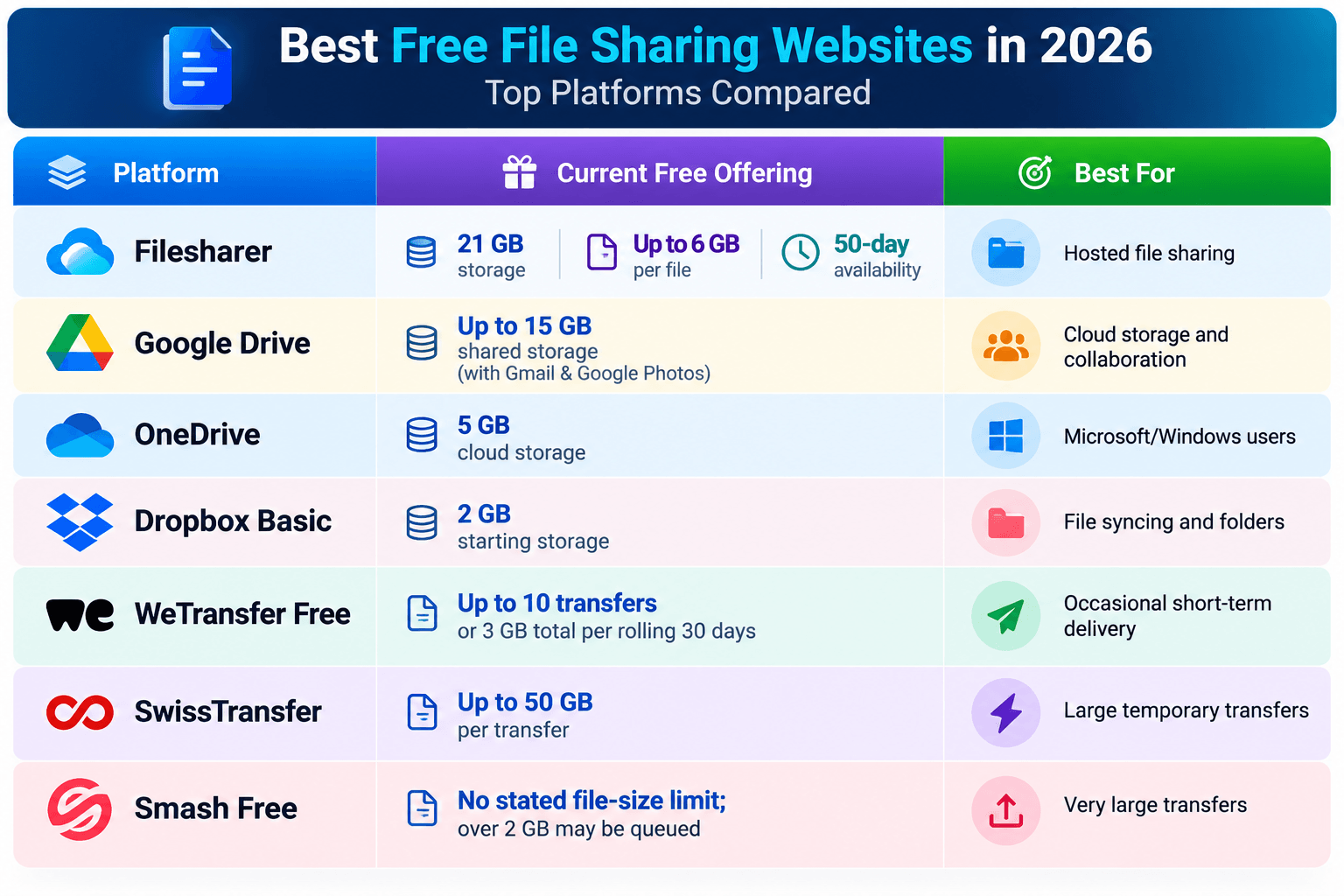
Among the best free file sharing websites in 2026, each major option has a different strength. Filesharer is a practical choice when you want hosted file sharing with a relatively generous free allowance and straightforward download links. Its current Starter plan advertises 21 GB of storage, up to 6 GB per file, 50-day file availability, and five files uploaded at once; the site also lists password-protected files and private links among its features. That combination makes it suitable for project files, documents, images, medium-size videos, and other material that needs more time online than a very short-lived transfer. Google Drive is better suited to users who want ongoing cloud storage and collaboration. Its free 15 GB allocation is shared with Gmail and Google Photos, so the usable Drive space depends on what else is stored in the same Google account, but the ecosystem is convenient for documents and team work.
Microsoft OneDrive is similarly useful for people already working with Windows or Microsoft’s web apps, although its free cloud-storage allocation is currently 5 GB. Dropbox remains simple and familiar for synchronization and folder sharing, but Dropbox Basic starts at 2 GB, so heavy users can reach the free limit quickly. WeTransfer is designed more for delivery than long-term storage. The current free plan allows up to 10 transfers or 3 GB total in a rolling 30-day window, and free transfer links can remain available for up to three days, making it convenient for occasional short-lived sends but less suitable when a recipient may need a link weeks later. SwissTransfer is one of the strongest options for very large temporary transfers because its official service currently supports up to 50 GB per transfer, does not require an account for basic sending or receiving, and allows free transfers to be available within its supported retention options.
Smash is attractive when file size itself is the main problem because its free plan states that there is no file-size limit; however, files above 2 GB can be placed in a non-priority waiting queue, so unlimited size does not necessarily mean immediate processing. The practical conclusion is that Filesharer works well for hosted sharing with a useful retention period, Google Drive and OneDrive are stronger for account-based everyday storage, Dropbox is convenient for lightweight syncing, WeTransfer is simple for occasional short transfers, SwissTransfer is excellent for large one-off deliveries, and Smash is worth considering for unusually large files when waiting is acceptable.
These differences matter more than a generic ranking because the best platform for a freelancer delivering a video may not be the best platform for a small business keeping shared documents or a student sending a single archive. If your priority is simplicity, use the shortest path that meets your requirements rather than opening accounts everywhere. For example, an occasional sender may prefer a temporary transfer tool because there is less folder management, whereas a team working on the same files every week benefits from a cloud drive. Also remember that free allowances are not directly comparable: “15 GB storage,” “50 GB per transfer,” and “no file-size limit” describe different things. Storage capacity tells you how much data can live in an account, while a transfer limit tells you how much can be sent in one transaction. Retention rules determine how long recipients have access.
Step-by-Step Guide: How to Share Files Online with Filesharer
A good file-sharing process should be simple enough for a beginner but careful enough for business use. Here is a practical workflow using Filesharer as the example.
Step 1: Open Filesharer and decide how you want to upload. Decide whether you only need a quick upload or want an account for easier management. The site states that basic uploads can be made without an account, while an account provides better file management. You can review the Filesharer FAQ for additional usage information.
Step 2: Prepare the file before uploading. Give it a clear name such as “ClientName-Project-Final-2026-10.pdf” instead of something vague like “final2new.pdf.” If you are sending many related files, organize them first and, where appropriate, create a ZIP archive so the recipient does not have to download dozens of separate items.
Step 3: Confirm that the size fits the current free limit. Filesharer’s Starter plan presently lists a 6 GB maximum file size, 21 GB of storage, five simultaneous uploads, and 50-day availability.
Step 4: Upload the file with drag-and-drop or the file picker, then allow the upload to complete before closing the browser. Large transfers can fail if a laptop sleeps, the browser is closed, Wi-Fi changes, or the connection drops, so keep the device online until completion.
Step 5: Choose the sharing method that fits the sensitivity of the file. A public share link can be appropriate for ordinary material, while private links or password protection are better choices for content that should not be casually accessible. Never use a public link for passwords, identity documents, financial records, or other sensitive information unless you have confirmed that the sharing method and service are suitable for that data.
Step 6: Copy the generated link and test it yourself in a private or incognito browser window. This catches common problems such as a broken URL, wrong file, unexpected permission requirement, or incomplete upload before the recipient sees it.
Step 7: Send the link through email, chat, a project-management tool, or another channel your recipient already uses. If you set a password, send that password separately rather than placing it beside the link in the same public message.
Step 8: Tell the recipient what the file is, its approximate size, and any download deadline. This is especially important when using temporary hosting because files may expire.
Step 9: Keep your original local or cloud copy until the recipient confirms successful download.
Step 10: Remove the upload when it is no longer needed if the platform gives you deletion control. This workflow is easy, but it adds important safeguards: clear naming, limit checking, correct permissions, link testing, separate password delivery, deadline communication, and a retained original.
Those habits matter regardless of which of the best free file sharing websites you choose. For business use, add one final verification before sending: make sure the recipient name, project name, and delivery message all match. If you are replacing an earlier version, say clearly that the new link supersedes the old one. For folders containing many assets, include a short README or index so the recipient knows what each file is. When sharing from a mobile device, use a stable Wi-Fi connection if possible and prevent the phone from interrupting a long upload. If a transfer fails, restart it rather than assuming a partially uploaded file will be usable. After the recipient confirms success, record the delivery in your project notes if the file is important.
Which Free File Sharing Platform Is Best for Different Users?
The easiest way to select a platform is to match it to a real use case. For a freelancer who sends a logo pack, presentation, website archive or video to a client, a link‑based service such as Filesharer can be convenient because the recipient can receive a direct sharing link without needing the entire cloud workspace. Filesharer’s current free plan gives files a 50‑day availability period, which can be useful when a client may not download immediately. For a student or office team that repeatedly edits documents Google Drive or OneDrive is usually a fit because the purpose is not only transfer but also ongoing storage, access and collaboration. Dropbox is also useful for syncing and shared folders when 2 GB of starting free storage is enough. For a photographer editor or creator who must deliver a large one‑time package SwissTransfer’s up‑to‑50‑GB transfer capacity can be attractive while Smash can handle files without a stated size ceiling on its free version if the sender accepts that transfers above 2 GB may wait in a queue.
WeTransfer remains easy for a small delivery but its current free allowance and three‑day maximum availability mean that it is less forgiving when a recipient is slow to download. Whatever service you use security should be part of the workflow than an afterthought. Start by sharing what the recipient actually needs. Remove personal information from documents avoid uploading secret keys or credentials and do not treat a file link as private merely because it is difficult to guess. Use password protection. Restricted access when available and send passwords through a separate channel when practical. If a document contains business, financial, medical, legal or identity information check whether the platform’s privacy terms, data location, encryption, access controls and retention policies meet your requirements before uploading it. Also remember that a transfer service is not automatically a service. A temporary link can expire a free account can hit its quota and platform policies can change. Keep least one independent copy of important files ideally following a proper backup routine. For teams define a naming and retention policy so that people know which version is final and when shared files should be removed.
Recipients should also verify download links before opening files especially if the message is unusual or comes from an unfamiliar sender. File sharing is most effective when convenience and caution work together. The free file sharing websites reduce friction but users still need to choose appropriate permissions understand expiry rules protect sensitive material and keep originals. That combination creates a process that's fast for ordinary work without becoming careless. Privacy is also about minimizing exposure time. A file that only needs to be downloaded does not necessarily need to remain online for months. When a platform lets you choose expiry or delete a file manually use the practical period.
For shared team folders review permissions periodically because former collaborators may still have access. Use multi‑factor authentication, on account‑based services when it is available and avoid reusing passwords across platforms. If you frequently exchange files with customers create a company process so every employee uses the same approved tools and settings. This reduces oversharing and makes support easier when a client cannot access a link.
Common File Sharing Mistakes and Pre-Send Checklist
Many file-sharing problems happen because of mistakes not because of the service itself. One common mistake is picking a service just because it promises a lot of storage or transfer space. A 50 GB transfer limit means nothing if you need the file to stay available forever.. Long-term cloud storage isn’t needed if you only want someone to download a file once today. Another mistake is forgetting about expiration. Services delete files automatically so always check how long the file will stay available and tell your recipient when it will be gone. A third mistake is sending the version. Before you share open the file check the name make sure no drafts or comments are still included and confirm that the folder structure is correct.
A fourth mistake is thinking a link is automatically safe. Use password protection, private links or restrict who can access the file when the content is sensitive. Never post a link with data in public places. Fifth don’t rely on a file-sharing service as your only copy. Keep the file on your device or in a separate backup until the project is fully done. Sixth avoid sending the password in the message as the link if you can use a different channel. Seventh remember your recipient. A hard-to-use login, a file name, a file that’s too big or a link that expires too soon makes things harder than they should be. Eighth never upload copyrighted, illegal, malicious or abusive content. Filesharer’s own rules clearly say no illegal files, malware or harmful material. Ninth be careful when using shared computers.
Sign out of your accounts downloaded files when you’re done and never save passwords in a browser you don’t trust. Tenth double-check your plan limits when the transfer matters. Free services often change their rules and one small change can break your plan. A simple checklist before sending can fix most of these problems. Make sure you picked the service for long-term storage or just a temporary transfer. Check that the file size fits within your limit. Name the file clearly. Scan the file to make sure it’s safe. Remove any sensitive details. Choose the sharing option—public private password-protected or restricted. Set a deadline when possible. Upload on an internet connection. Wait until the upload finishes. Test the link yourself. Send the password through a message if needed.
Tell your recipient the file size and the expiration date. Keep a copy on your device.. Revoke the share when it’s no longer needed. For teams at work add one step: decide who can share client data and which services are allowed for company use. That stops people from using tools, for sensitive files. The free file-sharing websites make sharing easy.. A reliable process is what turns convenience into something dependable. It takes a few minutes.. It can prevent lost files, exposed data, wrong versions and missed deadlines.
Another mistake is thinking the upload is done when the progress bar hits 100%. That only means the sending step finished. It doesn’t mean the recipient can actually open the link. Some people also compress files without checking them. Always open the ZIP or archive. Make sure the contents are correct before you upload. Finally don’t keep creating links when one good controlled share would work better. Many duplicates make it hard to track versions and revoke access. Good organization is part of security because it reduces confusion.
Frequently Asked Questions About Free File Sharing
Which is the best free file sharing website in 2026?
There is no single winner for every user. Filesharer is a strong option for hosted sharing with a current free plan that lists 21 GB of storage, files up to 6 GB, and 50-day availability. Google Drive is better when you want ongoing cloud storage and collaboration, while SwissTransfer is especially useful for large temporary transfers.
Which service gives the most free cloud storage among the mainstream drive-style options discussed here?
Google accounts include up to 15 GB shared across Drive, Gmail, and Photos; OneDrive’s free cloud allocation is 5 GB, and Dropbox Basic starts with 2 GB.
Which service is best for sending a very large file?
SwissTransfer currently supports up to 50 GB per transfer, while Smash’s free version states that it has no file-size limit, although transfers above 2 GB may enter a waiting queue. The better choice depends on whether you prioritize a defined large-transfer allowance or are willing to wait for non-priority processing.
Do recipients need an account?
It depends on the service. SwissTransfer states that neither sender nor recipient needs an account for its basic transfer flow, while cloud-drive services typically use account-based storage even when recipients can sometimes access shared links without signing in.
How long should I keep a shared file online?
Only as long as the recipient reasonably needs it. Temporary business deliveries should have a clear deadline, while ongoing project documents belong in a properly managed storage system.
Is free file sharing safe?
It can be appropriate for ordinary files when you use reputable services, correct permissions, strong account security, password protection where needed, and sensible retention. For sensitive or regulated information, verify the platform’s policies and your organization’s requirements before uploading.
Can free file sharing replace backup?
No. Sharing and backup solve different problems. Keep an independent copy of important data even after a successful upload.
What should I do if a link does not work?
Test the link yourself, confirm that the file has not expired or been deleted, verify permissions, and create a new share if necessary.
How can I get started?
Visit Filesharer, choose the file you want to send, confirm that it fits the current plan limits, upload it, apply the appropriate sharing controls, test the generated link, and send it to your recipient with a clear note about the file and deadline. For more practical ideas, read Filesharer’s free file sharing productivity guide.
Should I always choose the platform with the largest free limit?
No. A larger limit can be useful, but reliability, retention, access control, and recipient convenience may matter more.
What if the free plan changes later?
Recheck the provider’s pricing, help center, or FAQ before an important transfer, especially if your workflow depends on a specific file-size or expiry rule.
Final takeaway: the best free file sharing websites are not identical. Choose Filesharer when you want straightforward hosted sharing, Google Drive or OneDrive for continuing cloud work, Dropbox for lightweight synchronization, WeTransfer for simple short-term delivery, SwissTransfer for large temporary sends, or Smash when unusually large files are the main concern. Start with the job you need to complete, then compare size, retention, privacy, recipient experience, and current limits before uploading.
Conclusion: Start Sharing Files the Smarter Way
Free file sharing is no longer only about finding a website that can accept a large upload. The right platform should match the size of your files, how long they need to remain available, who needs access, and whether you want temporary delivery or ongoing cloud storage. Filesharer offers a practical balance for users who want straightforward hosted sharing, while Google Drive, OneDrive, Dropbox, WeTransfer, SwissTransfer, and Smash each serve different requirements. Instead of choosing a service only because it advertises the biggest number, compare its current limits, retention rules, access controls, recipient experience, and suitability for your workflow. Most importantly, keep your original files, test every important download link, use appropriate privacy settings, and remove shares when they are no longer necessary. By following these simple habits, individuals and businesses can use the best free file sharing websites more efficiently while reducing common problems such as broken links, expired transfers, wrong versions, and unnecessary exposure. Whether you are sending a client presentation, a large video, project documents, images, archives, or everyday files, start with a clear purpose, choose the platform that fits that purpose, and make secure file sharing part of your normal digital workflow.
Login or create account to leave comments
Popular articles

Top Free Cloud Storage Platform for Fast and Secure File Sha...
Mar 13, 2026 07:18 PM
Why Secure Cloud Storage Is Essential for Modern File Sharin...
May 19, 2026 01:40 PM
What Is File Sharing and How to Share Files Online Securely
Mar 12, 2026 07:43 PM
Best Free Cloud Storage for Secure File Sharing in 2026
Mar 13, 2026 07:08 PM
Best Cloud File Transfer Platforms for Easy Online Sharing
May 19, 2026 01:48 PM
Comments (0)